
Quotes
Send a price quote before you invoice — clients can accept or reject it directly from a link, and an accepted quote converts straight into an invoice.
How to view all quotes
Open Quotes from the sidebar. You'll see every quote with its number, client, status, total, issue date, and how long it's valid for.
How to create a quote
Click "New Quote." Pick a client (required) — their billing address and GSTIN are copied on automatically. Choose a currency, issue date, and how long the quote stays valid.
How to add or remove line items
From a draft quote, add a line item (description, quantity, unit price, tax rate, optional HSN/SAC code) — totals recalculate automatically. Only draft quotes can be edited.
How to send a quote
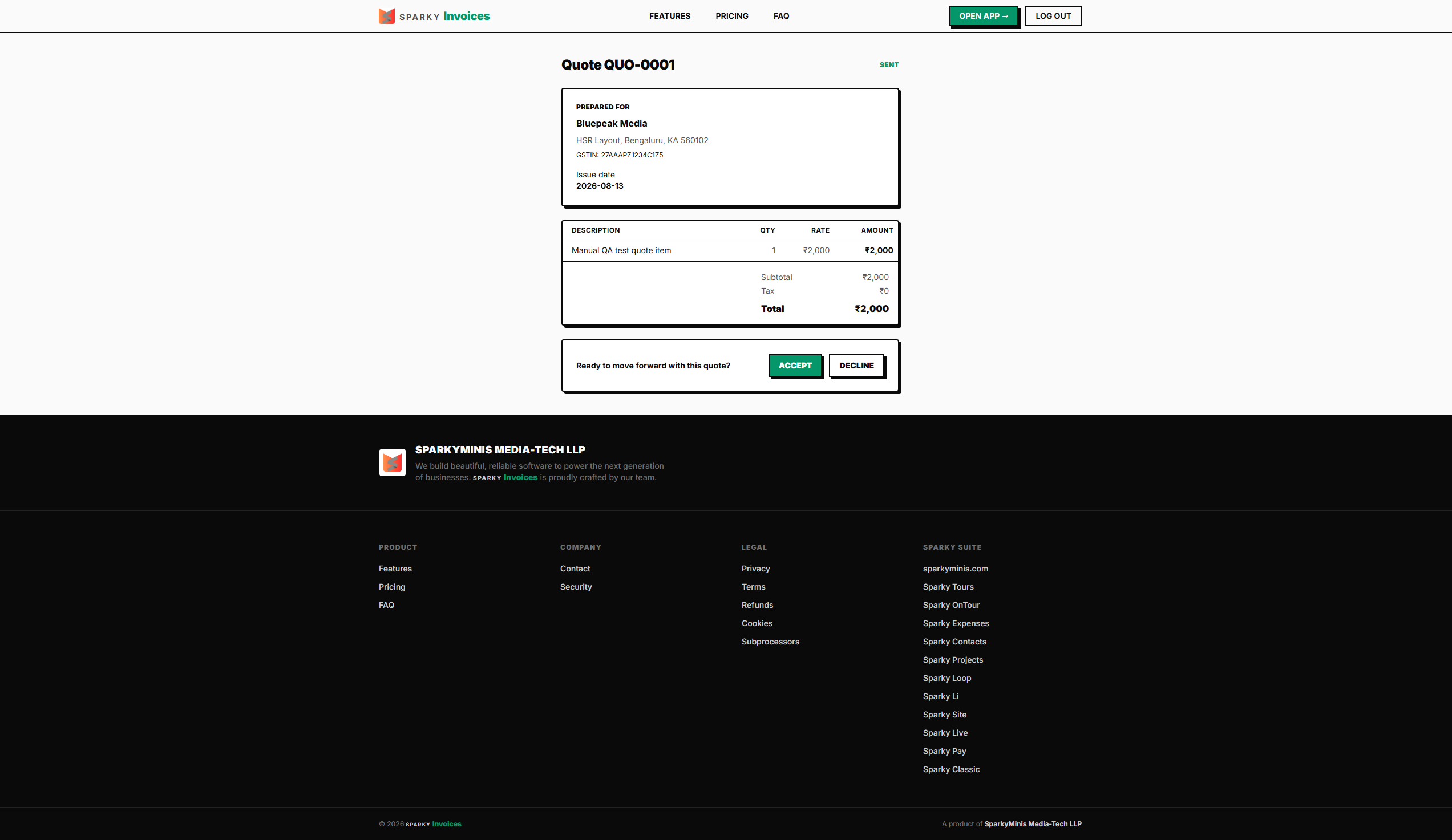
From a draft quote with at least one line item, click Send — this generates a shareable link for your client and locks the quote from further editing. Sending again later (if you needed to resend) reuses the same link rather than generating a new one.
How your client accepts or rejects a quote
Your client can open the link and accept or reject it themselves — no login needed. Once a quote's valid-until date passes, the link automatically shows it as expired, even if nobody has looked at it since.
How to record a quote's outcome yourself
If your client responded outside the link (a phone call, an email reply), mark the quote accepted or rejected yourself from its detail page — same effect either way.
How to convert an accepted quote into an invoice
From an accepted quote, create an invoice from it — this opens a new draft invoice with the same line items, ready for you to review and send.