
Invoices
Create, send, and track invoices — including GST-compliant tax handling and credit notes.
How to view all invoices
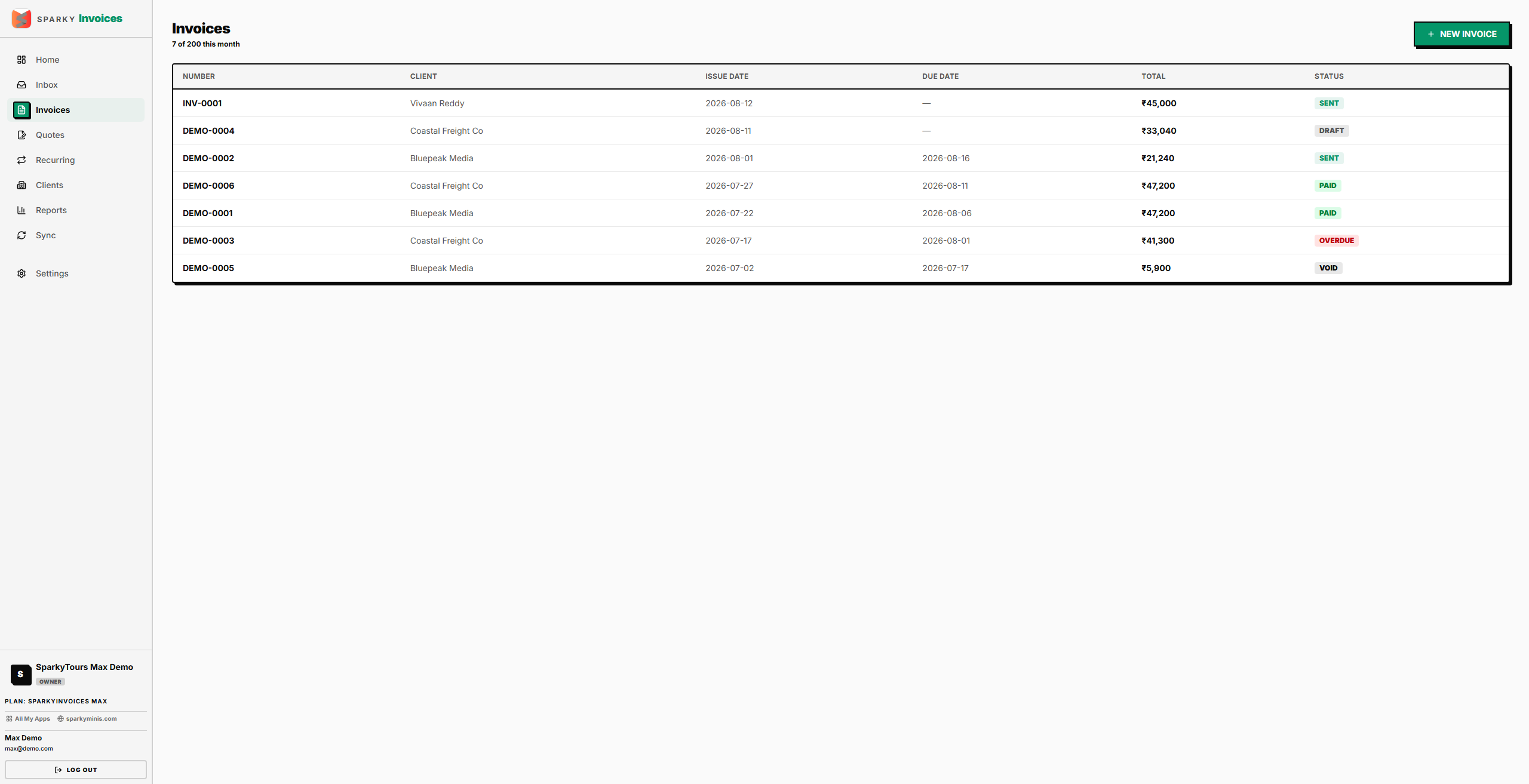
Open Invoices from the sidebar. You'll see every invoice with its number, client, status, total, issue date, and due date.
How to create an invoice
Click "New Invoice." Pick a client (required) — their billing address and GSTIN are copied onto the invoice automatically. Choose a currency, issue date, due date, payment terms, invoice type (Regular, Export with tax, or Export without tax), and place of supply (defaults from the client's GSTIN, but you can override it). If your plan has a monthly invoice limit, creating past it is blocked with an upgrade prompt.
How to add or remove line items
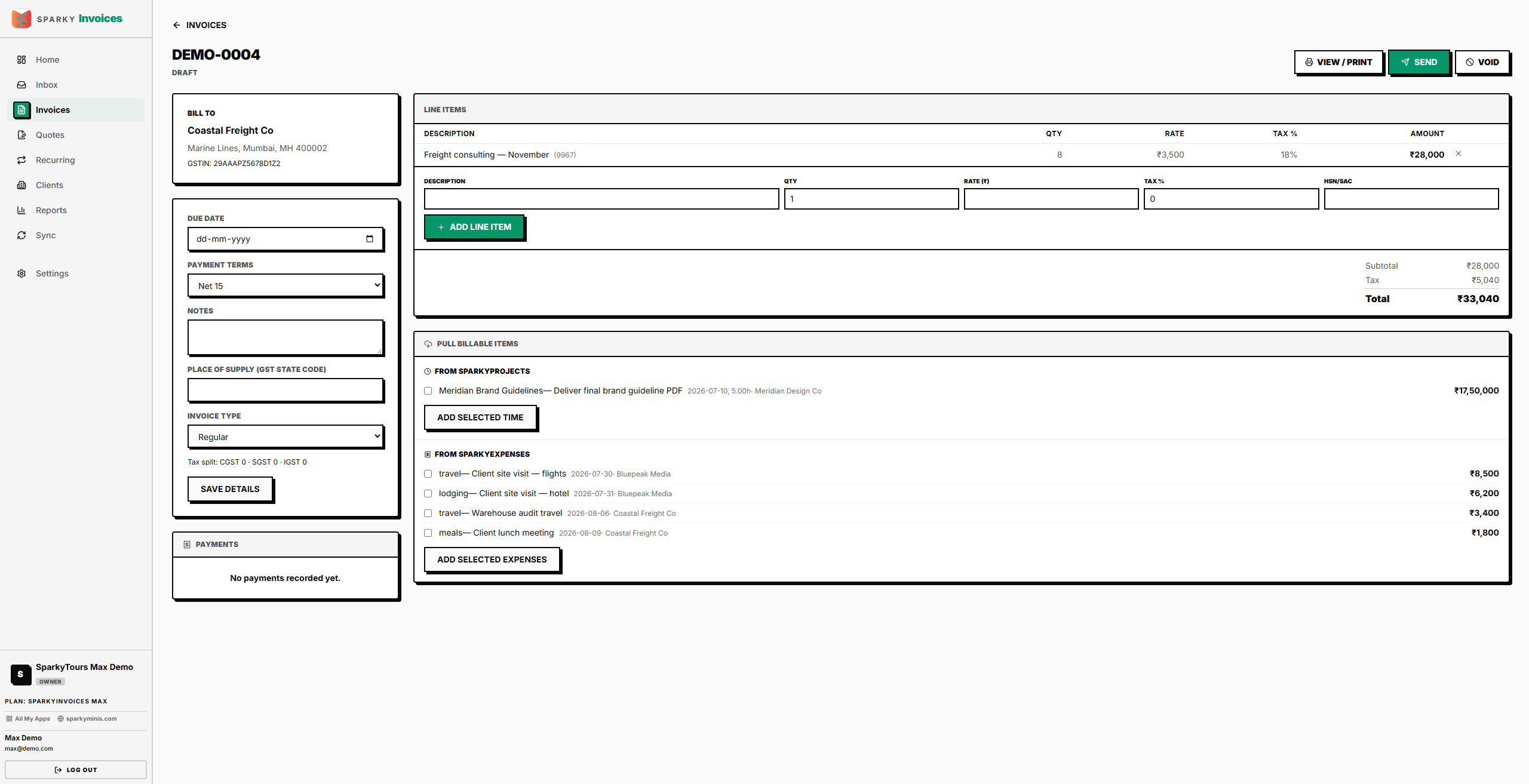
From a draft invoice, add a line item: description (required), quantity, unit price, tax rate, and an optional HSN/SAC code. Totals — including the GST split into CGST/SGST/IGST where applicable — recalculate automatically. Remove a line item the same way. Only draft invoices can be edited this way.
How to pull in billable time or expenses
If your plan includes cross-product sync, a draft invoice can pull in unbilled time entries from SparkyProjects or unbilled expenses from SparkyExpenses as ready-made line items — select the ones you want and they're added and marked as invoiced at the source, so they won't get pulled or billed twice.
How to send an invoice
From a draft invoice with at least one line item, click Send. This locks the invoice from further editing and emails the client an invoice notification (through SparkyPay, not a PDF attachment) if their email is on file.
How to record a payment
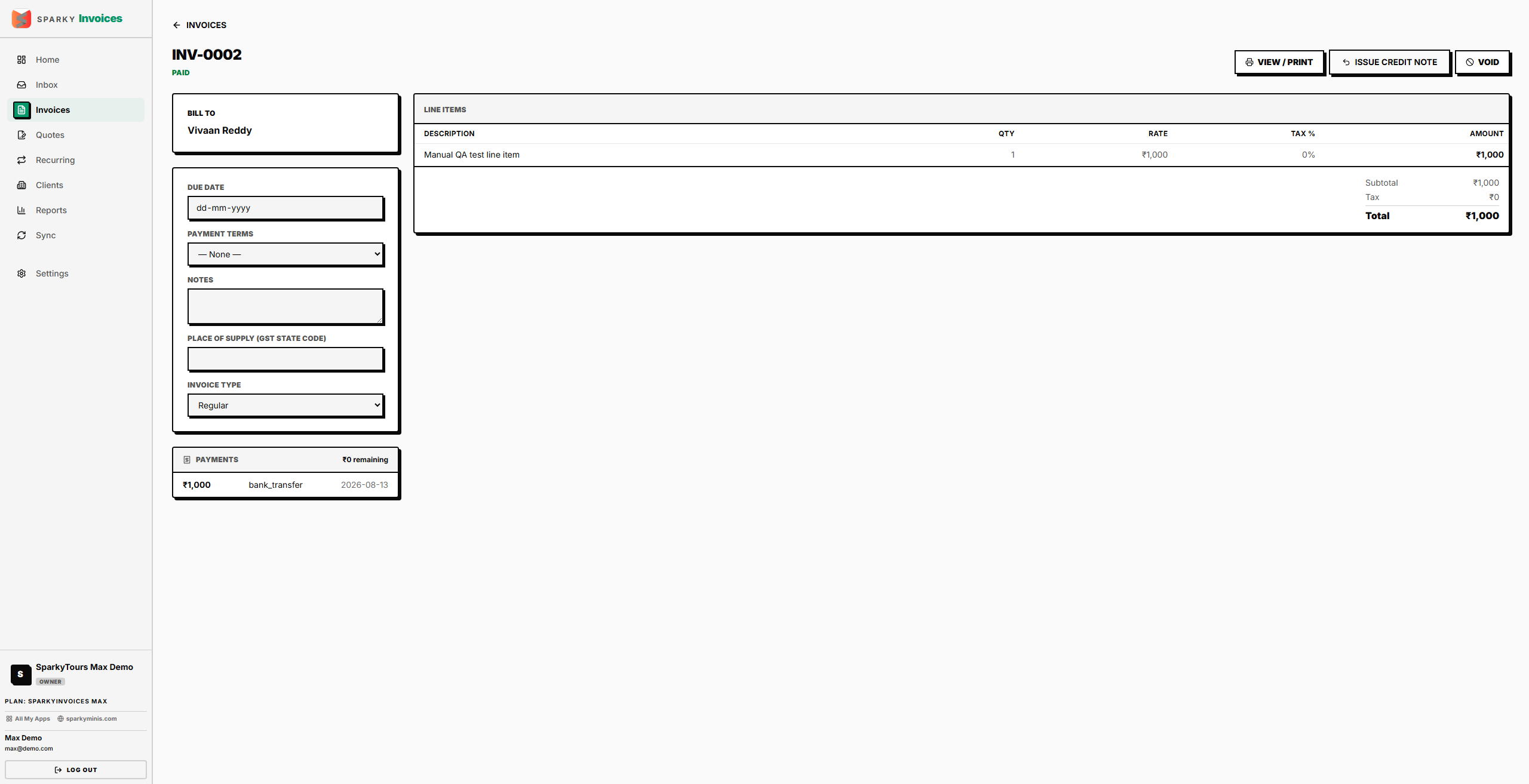
On a sent invoice, record a payment: amount, date, method, and an optional reference. Once payments cover the full total, the invoice automatically moves to Paid.
How to void an invoice
Void an invoice at any point (except one already voided) if it should no longer be considered active, then confirm — a voided invoice can't be sent or paid again, and this can't be undone. It isn't deleted, though.
How to issue a credit note
On a sent or paid invoice, issue a credit note — it opens as a new draft (numbered separately, e.g. CN-0001) you edit and send just like any other invoice, linked back to the original. The original invoice's page also shows a "Credit notes issued" list linking forward to any it has.
How to print or download an invoice
Open the print view of any invoice for a clean, printable layout with your organization's details, the client's billing details, line items, and totals.
How to draft an overdue-payment reminder (AI)
If your plan includes AI Insights, a sent invoice with a due date can generate a ready-to-send reminder email draft — it's shown for you to review and send yourself, never sent automatically. This is available on Plus and Max plans.